

Mass Assignment
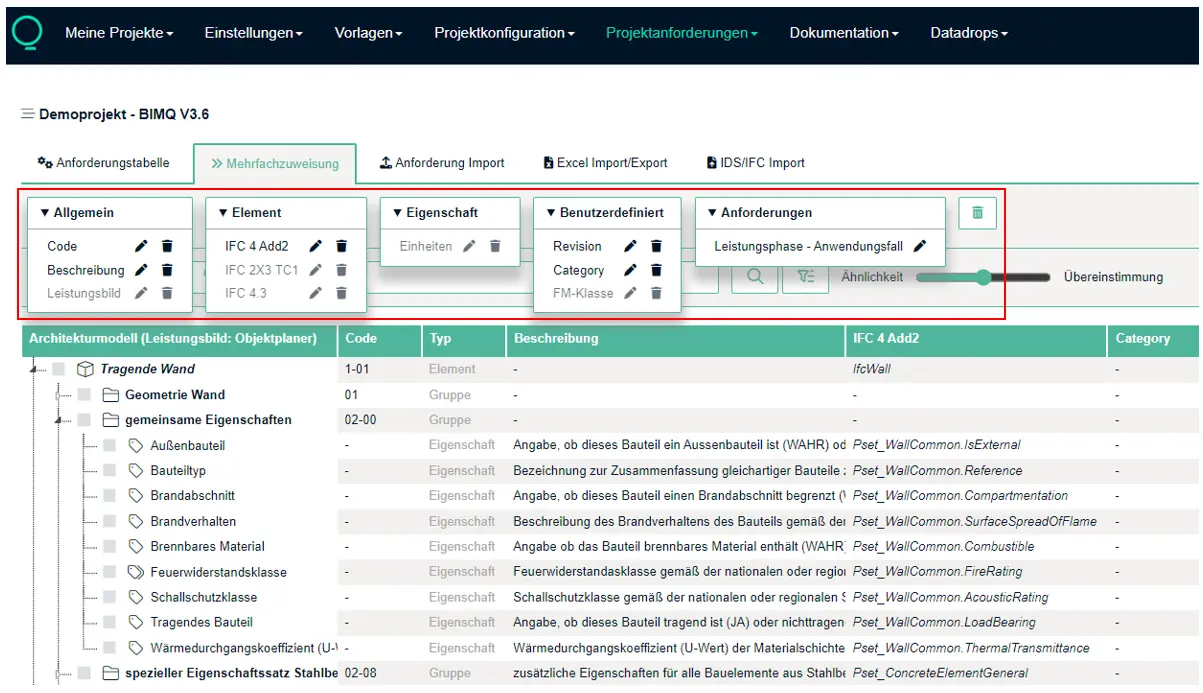
The feature Mass Assignment allows you to edit or delete information for multiple entries at once. This makes it possible to efficiently apply changes to a large number of elements, properties, or groups.
This feature is available in the Templates section and also in the Project Requirements section.
Availability of Mass Assignments
The following information can be edited using mass assignment:
Common
Code
Description
Actor
Object
IFC Element Mapping for different IFC versions
Property
Unit
Custom
Custom Mappings
Requirements
Depending on the project structure:
Combinations of Project Phase and Use Case, or
Combination of Use Case and Milestone
Delete icon (to the right of “Requirements”)
Deleting Multiple Concepts
Figure: Possible Mass Assignments
How It Works
First, select the desired entries in the requirements table. Mass assignment can be applied to all types available in BIMQ. However, most customizations can be applied to the following types:
Object
Property
Group
The desired mass assignment is then opened.
The function automatically checks which of the selected entries the chosen information can be applied to. Entries that do not match are ignored.
When editing a specific type of information, such as a description or an IFC element mapping, BIMQ opens the corresponding standard dialog box. The editing process is the same as for a single definition.
After confirming the dialog box, the changes made are applied to all selected entries for which the selected information is valid.
Example
If elements and properties are selected at the same time and a multiple assignment is then performed for the IFC element mapping, the changes are applied only to the elements. The selected properties remain unchanged.
Figure: Mass Assignments for IFC Element Mapping
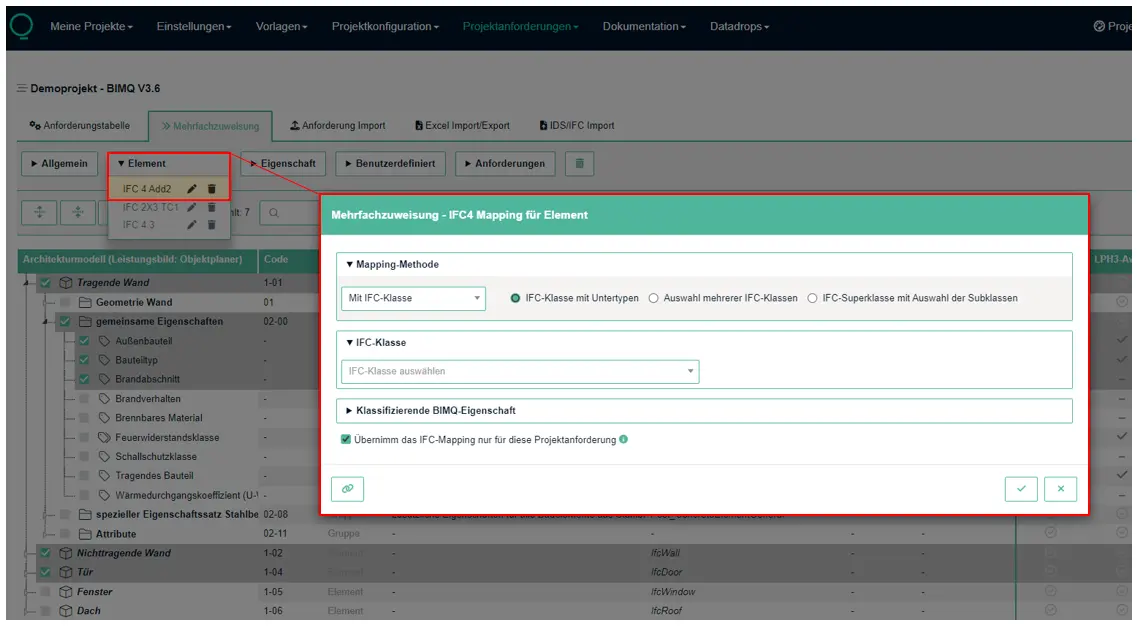
The figure shows multiple assignment for the IFC 4 Add2 mapping of elements. Several elements, properties, and groups are selected. The multiple assignment is applied only to the selected elements.
Visibility of Functions
Mass assignments are available only for information whose columns are displayed in the current view.
Columns that are not enabled are displayed in the dialog, but they are grayed out and cannot be used.
In general, this feature is available in the Templates and Project Requirements sections.
Synchronization between Templates and Project Requirements
Changes made in the Templates section are automatically synchronized with the project requirements.
If entries in the project requirements have already been overwritten, those overwrites are retained. Overwritten values are highlighted in color.
Example
An IFC mapping is changed in the templates. This change is automatically applied to the project requirements.
However, if the IFC mapping has already been overridden in the project requirements, the overridden value remains unchanged.
You can find more information about overwritten entries in the Project Requirements section here.
Edit and Delete
For each supported type of information, entries can either be:
edited in bulk or
deleted in bulk
Changes are always applied only to the currently selected entries.
If an entry is deleted from the templates, the changes are also synchronized with the project requirements.
Any existing overrides will remain in place.
If entries are deleted directly from the project requirements, only the overrides present there will be removed. Afterward, the value from the templates will apply again.
Note: Next to the option Mass Assignment of Requirements, there is a delete icon. After selecting the items, you can use this icon to delete multiple concepts.
Special considerations for Code and Unit
The information Code and Unit is always synchronized between templates and project requirements.
There are no overrides for this information.
Changes to the code or unit are therefore always applied automatically.
Special considerations in the section Project Requirements
Mass assignments for the following information are available exclusively in the section Project Requirements:
Actor
Requirements (Combinations of Project Phase and Use Case)
A distinction is made between required (check mark) and not required (minus sign)
This information can only be defined within the project requirements.
Figure: Mass assignments for combinations of project phases and use cases.
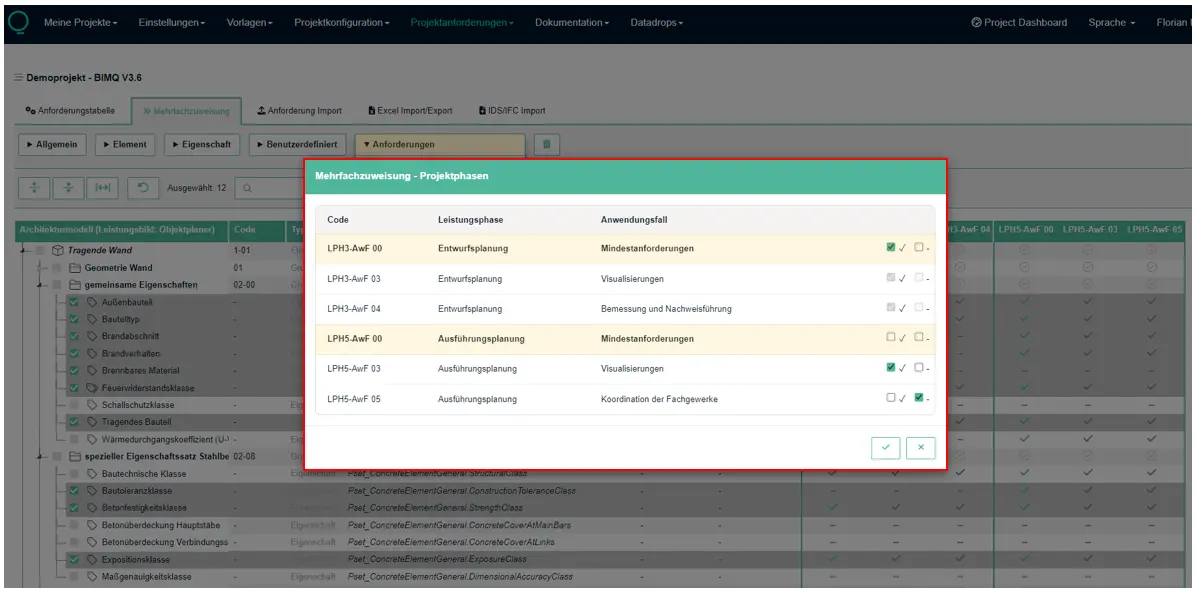
The figure shows the mass assignment of different combinations of project phases and use cases. Only those combinations that have been activated in the user interface are available for selection. The default use case (minimum requirements) is displayed in bold. A mass assignment set to the minimum requirements is automatically applied to all other combinations of the corresponding project phase.