

BIMQ User Interface
Overview
Figure: BIMQ User Interface
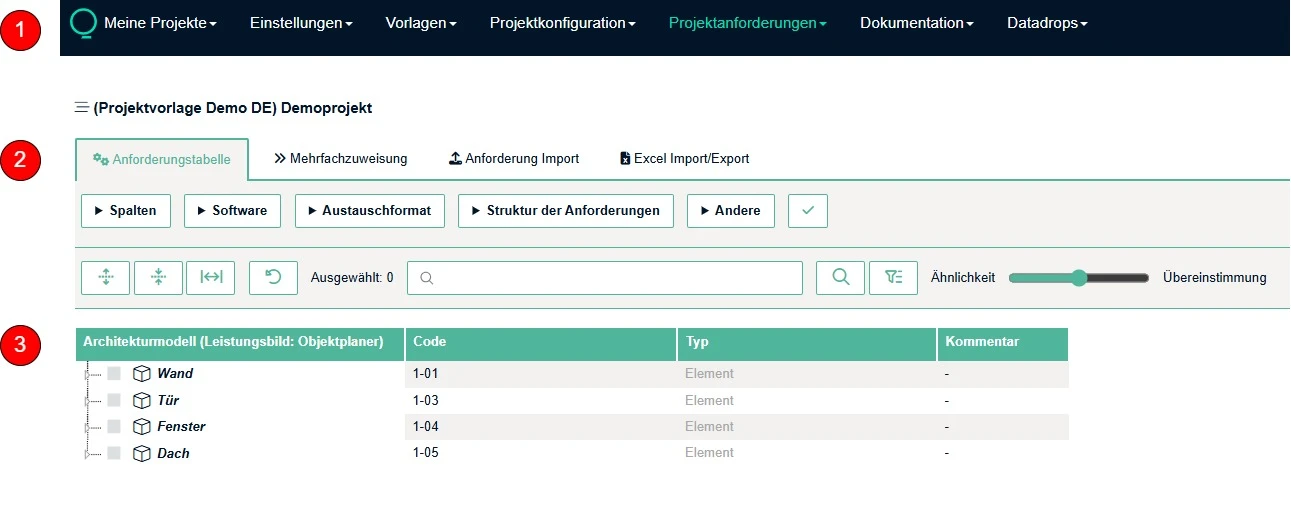
Menu barThe ribbon gives you access to all of BIMQ's important functions. The menu items displayed and their contents depend on the user profile settings and the guideline used, and may therefore vary.Function barThe function bar can be used to show or hide configurations for software systems, exchange formats, descriptions, classifications, data types, etc.Data tableDisplays all data for the requirements defined in the project in the form of a table.
Menu bar
The menubar contains all important higher-level areas. The content displayed depends on the user rights of the respective user.
Figure: BIMQ Menu bar

My ProjectsOverview of all own and publicly accessible projects, as well as all projects to which you have been invited.General SettingsProject overview with general project information and the definition of relevant project settings.TemplatesDefining Actors, Phases, and Use Cases, as well as accessing to Component Templates (library).Project SetupSection for linking created use cases to project phases. In addition, project requirements are configured in this section by assigning the concepts created in the templates to the respective Discipline models.Project RequirementsHere, all necessary information requirements can be recorded in a structured manner and modified based on the domain model.DocumentationDownload section for reports, software templates for CAD programs, and checking rules in various formats (IDS, Desite, BIMCollab, etc.)Data dropsAn area where project-specific, standardized data delivery points can be defined and output in the form of checking rules.
Function bar
The function bar is used to configure the display of general information, CAD software, exchange formats, classifications, languages, user-defined mappings, and other configuration options. By enabling or disabling the respective configuration, it can be easily shown or hidden. Furthermore, the toolbar can be used to control advanced functionalities such as multiple assignments, data access from external content, or export/import processes.
Figure: BIMQ function bar

Data table
The data table provides a structural overview based on the current configuration settings of the toolbar, presented in a tabular format. The first column always displays the general concept name.
Figure: BIMQ Data Table in the Section Project Requirements
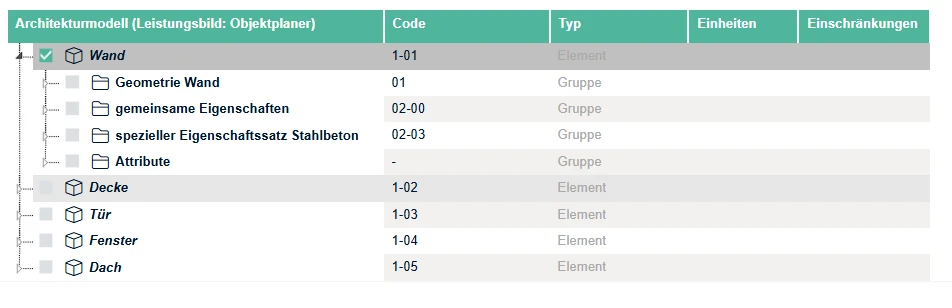
Arrow icon Use the arrow to expand or collapse sub-sections.
Marking field The highlight indicates that an concept has been selected. Various actions, such as moving, copying, renaming, deleting, etc., can be performed on the selected concept. You can also easily select multiple concepts using the Ctrl key.