General Settings – Project Settings
The section Project Settings is used to specify which software systems, IFC schemas, classifications, or languages are relevant to the project and should be used. When defining the appropriate software or preferred IFC schema, BIMQ refers to a reference. This reference assists the user during the subsequent mapping process and ensures a consistent workflow.
Software
The tab Software is used to specify which software systems should be used in the project. All available software systems can be added via a drop-down list. Each selectable software is linked to a specific reference. This means that the user can utilize the standards of the respective software. In Revit, for example, these include all internal family categories or built-in parameters, which are made available in the form of a drop-down list during subsequent mapping.
Figure: Adding new software
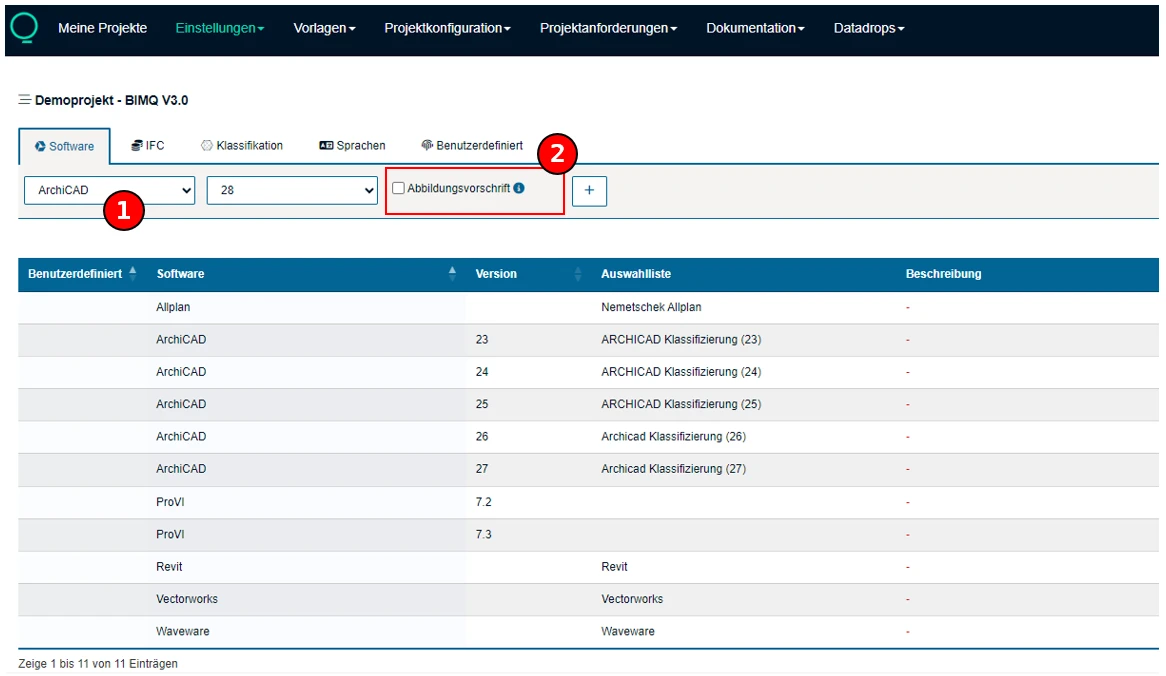
The available software systems include ArchiCAD, Allplan, Revit, ProVI, waveware, and Vectorworks. ArchiCAD and ProVI are further divided into individual versions, which are managed separately. For each software system (with the exception of Vectorworks), it is possible to generate export files in the form of software templates.
Note: Software templates for the software “BricsCAD” can also be created. It is not necessary to make a specific selection in the area “Software” because the template is generated directly from the IFC column as an IDS file.
Feature “automatic mapping”
Automatic mapping of software systems
When a new software is added, you have the option to use “automatic mapping” . If the checkbox Data mapping is selected, the mapping is automatically defined for all elements and properties. For element mapping, BIMQ uses the information from the reference of the software being used. Property mapping is applied according to the BIMQ definition. If the checkbox is deselected, no “automatic mapping” is used. All mapping entries for elements or properties are empty and must be defined manually by the user.
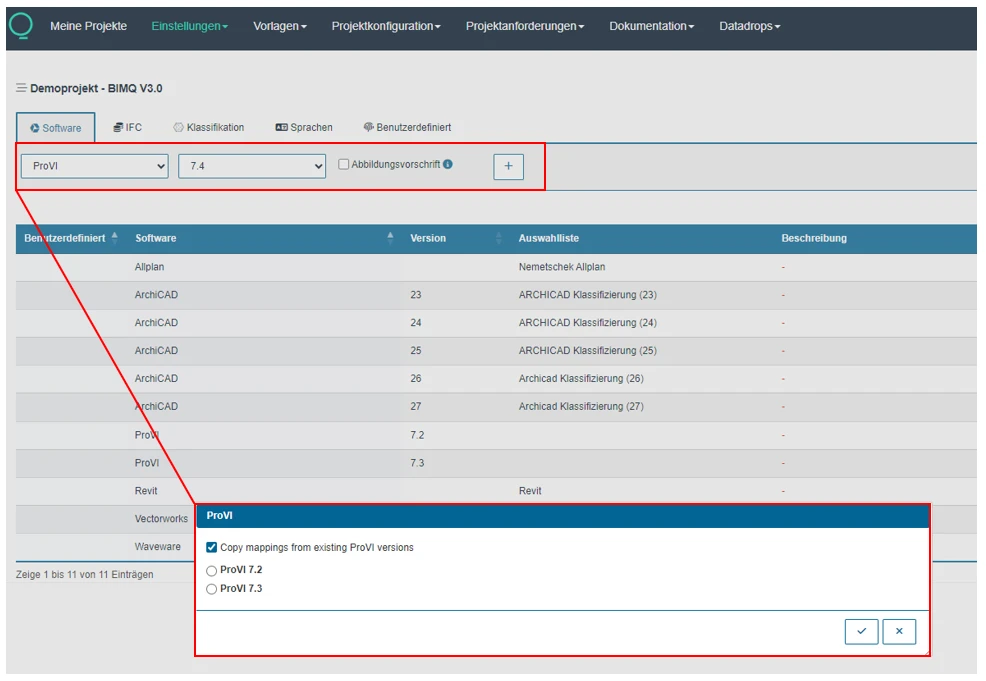
For the software systems ArchiCAD and ProVI, it is still possible to copy the mappings from different versions. For example, you can transfer the element and property mappings from ProVI 7.3 to the current version, ProVI 7.4. To do this, add the new version with the checkbox deactivated, and then select which ProVI mapping to copy in the dialog box.
Figure: Adding and automatic mapping in ProVI 7.4
IFC
The tab IFC provides an overview of all IFC versions relevant to the project that are currently available. All versions officially released by buildingSMART are available:
IFC 2x3 TC1
IFC 4 ADD2
IFC 4.3 ADD2
An extended-scope classification mapping is also available for IFC 4.3 ADD2. This includes additional abstract IFC classes that cannot be directly instantiated.
Automatic mapping of IFC
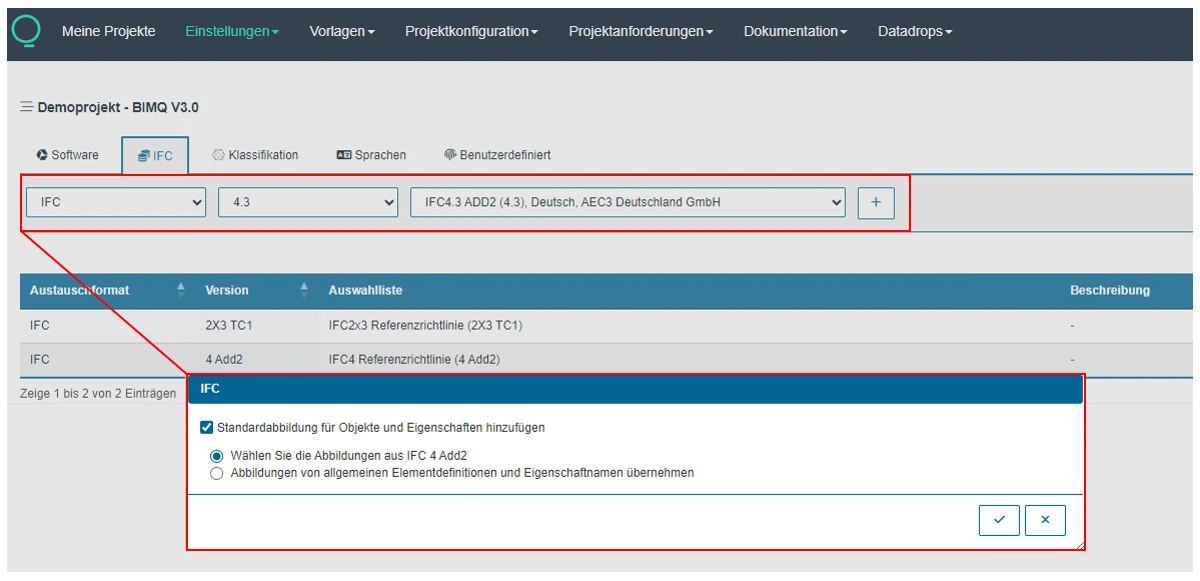
Similar to “Automatic Mapping for Software Systems,” this functionality is also available for the various IFC versions. When a new IFC version is added, the following mapping configurations are available:
Deactivated checkbox: Add default mappings to elements and properties
All mapping entries for the added IFC version are empty and must be defined manually by the user.
Activated checkbox: Add default mappings to elements and properties
If you select the first option, “Select mapping from IFC xx” all mapping entries from that version will be transferred to the new version.
If you select the second option, “Select mapping from default element and property names” an automatic default mapping is used. For element and property mapping, BIMQ uses the information from the reference of the IFC schema being used. If the entries do not match the IFC schema, a placeholder (IfcBuildingElementProxy) is defined for the relevant elements. All non-matching properties and property groups are created as user-defined entries.
Figure: Adding and automatic mapping for IFC 4.3 ADD2
Classification
In the tab Classifications, you can choose between the two classification sources: “From bSDD...” and “From BIMQ Picklist...”.
The classifications source bSDD provides direct access to the classifications stored in the buildingSMART Data Dictionary, which are also managed by buildingSMART.
Classifications from BIMQ are provided by our team and updated on an ongoing basis. All classifications defined in BIMQ are enabled as additional mapping columns and can then be used. The example shown in the figure illustrates the classification according to DIN 276, including hierarchical ordering.
Figure: Classification according to DIN 276

Note: All classifications can still be exported in a machine-readable format (JSON). This export includes all mapping entries and IFC assignments.
If you have any further suggestions for classification systems to choose from, please feel free to share them with us.
Language
In the tab Language, you can manage as many translations as you like. Each language added is provided as a mapping definition column. Here, you can maintain a translation for the relevant concept (model, element, group, property, or geometry) and the corresponding description text.
Custom
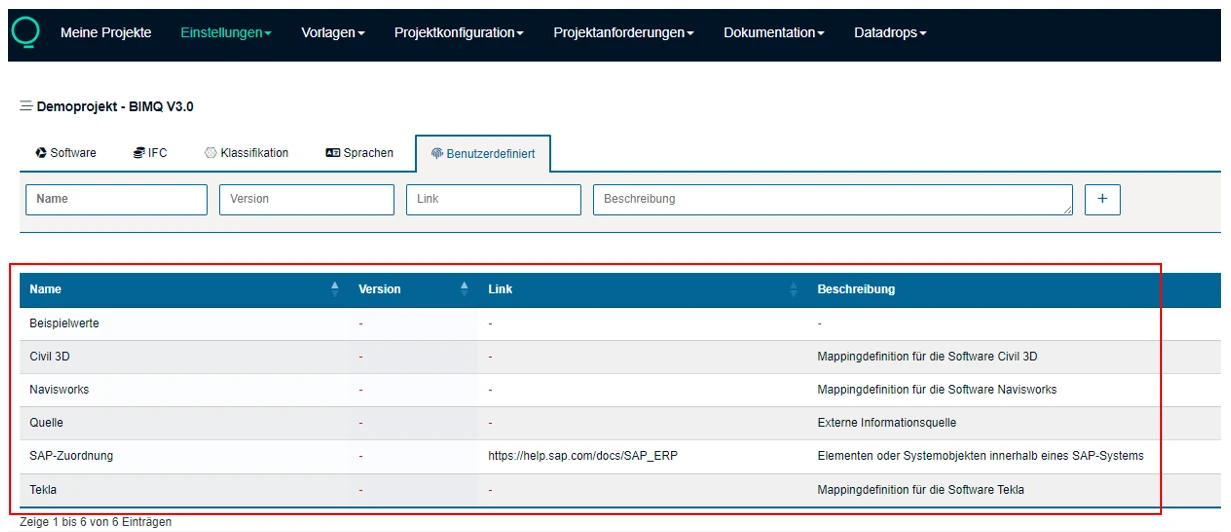
Custom defines all mapping definitions intended to document specific information or that cannot be definitively assigned to a particular software, IFC schema, classification, or language. These custom entries are created in BIMQ as separate mapping definition columns. Users can employ a customized mapping configuration, for example, to document an internal company coding system. Other examples include information regarding SAP mapping, sample values, editor, creator, source, etc.
Export configurations
All custom mappings can still be exported in a machine-readable format (JSON). This exports all mapping entries, including IFC assignments. This allows information to be made available even for software systems for which no direct connection to BIMQ exists. This data can then be used for integration and implementation in the respective external software (no automatic import process). This makes it possible to create mappings, for example, for Civil 3D, Tekla, Navisworks, or MicroStation and use them for implementation - even without a direct interface.
Figure: Example of custom mapping definition columns