

Templates – General conditions
The DIN EN 17412 standard uses the Level of Information Need (LOIN) to define what information is actually required in BIM projects – structured according to geometry, attributes and documents.
The information requirements are consistently linked to Actors, Phases and specific use cases. This creates a clear, purpose-driven basis for efficient and transparent information requirements within the project. The area Templates - General conditions is used to define the Actors, Phases (Milestones) and use cases that are relevant to the project in question.
Figure: Level of Information Need – based on DIN EN 17412
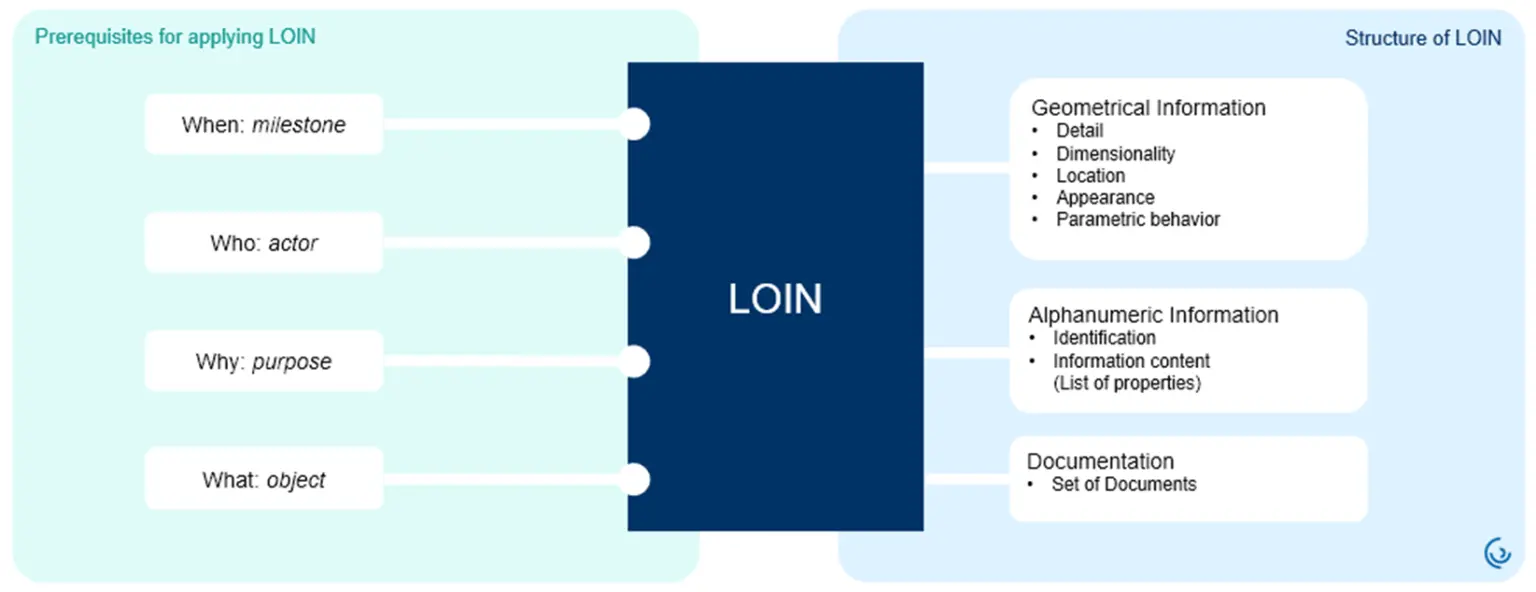
In addition to the geometric and alphanumeric information content, the standard also defines the specific general conditions:
When is the information required? (Phases, Milestones)
Who needs the information? (Actor, Discipline)
For what is the information needed? (Use case)
What information is needed? (Delivery object)
Actors
The area of Actors defines responsibilities that are subsequently assigned to the individual discipline models.
Figure: Adding actors
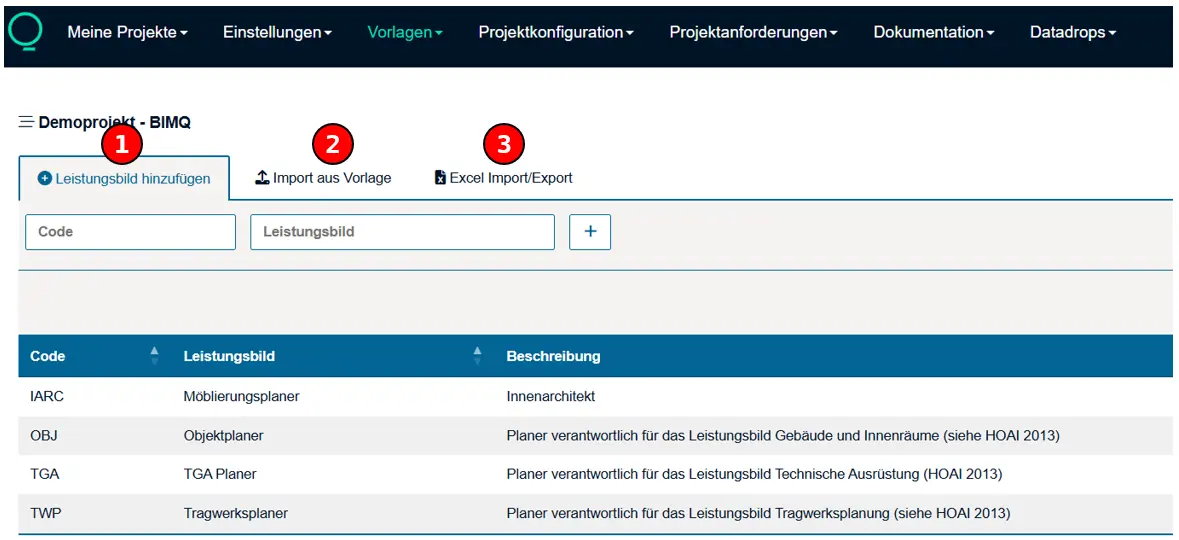
The figure shows typical actors based on the HOAI, such as architect, structural engineer or MEP engineer.
Add ActorThis allows the creation of actors directly via the UI. It is mandatory to specify a code and the name of the actor.Template ImportThe function Template Import allows access to external content. This includes projects to which you have been invited or projects provided by AEC3. A certain level of access authorisation is therefore required. External content can then be integrated into your own project.Excel Import/ExportThis feature allows you to import data easily via Excel. We recommend that you always export the data to Excel first so that you can use the basic Excel structure (template) required by BIMQ.
Note: The function Template Import and the Excel Import/Export feature are also available for the sections Phases and Use Cases.
Phases
This section is used to create Phases / Milestones.
Figure: Definition of project phases
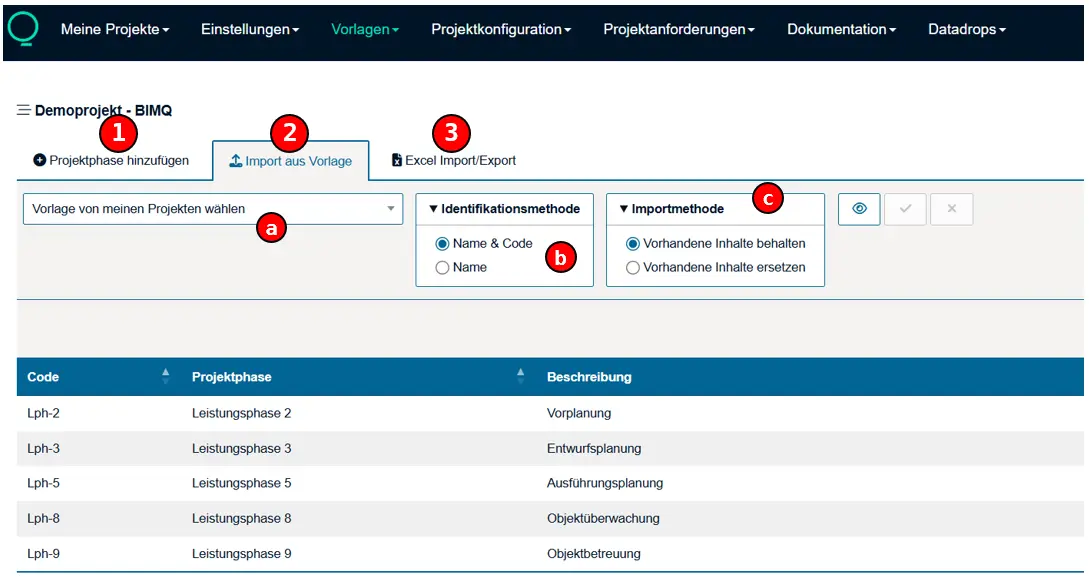
The figure shows classic project phases.
Add PhaseThis allows the creation of phases directly via the UI. It is mandatory to specify a code and the name of the project phase.Template ImportThe function Template Import allows access to external content. This includes projects to which you have been invited or projects provided by AEC3. A certain level of access authorisation is therefore required. External content can then be integrated into your own project.a) Select the project (external content) to be accessed.
b) Identification method by
Name & Codeor byNameonly.c) The import method
Keep existing contentallows you to import new content from an external source; duplicate content is struck through, displayed in grey and cannot be imported.This import method
Replace by imported elementallows existing content to be compared with external sources and updated. Any discrepancies or information that needs updating are highlighted in red.Excel Import/Exporthis feature allows you to import data easily via Excel. We recommend that you always export the data to Excel first so that you can use the basic Excel structure (template) required by BIMQ.
Note: The function Template Import and the Excel Import/Export feature are also available for the sections Actors and Use Cases.
Template Import
The following figure illustrates how to add new phases from an external source.
Figure: Template Import
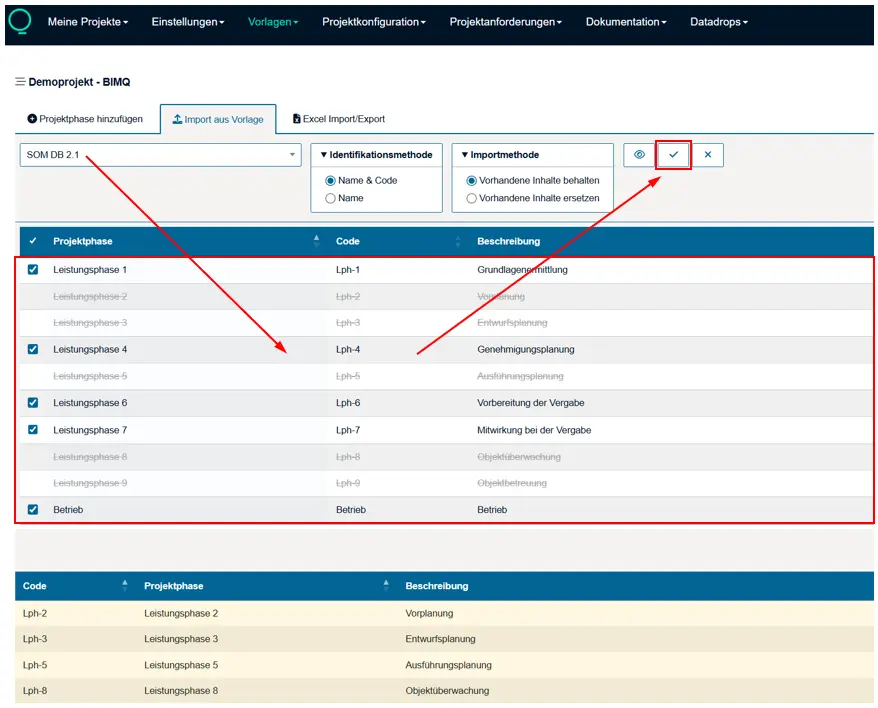
The function Template Import is used to access an external source. In the example, the German railway’s public standard, the Semantic Object Model (SOM DB 2.1), was used. The content of the SOM is therefore accessed. The identification method selected was “Name & Code” and the import method was “Keep existing content”.
The table below lists all the project phases defined in SOM DB 2.1. Some phases are crossed out and highlighted in grey. This is because phases with the same "Name & Code" already exist. All project phases used in your own project are listed in the bottom table (highlighted in yellow). This means that only the phases that are not crossed out can be imported into BIMQ, as otherwise duplicates would be imported.
All new phases can be selected as required and transferred from the selected project to your own.
Use Cases
This section is used for creating and managing use cases.
Figure: Creating use cases
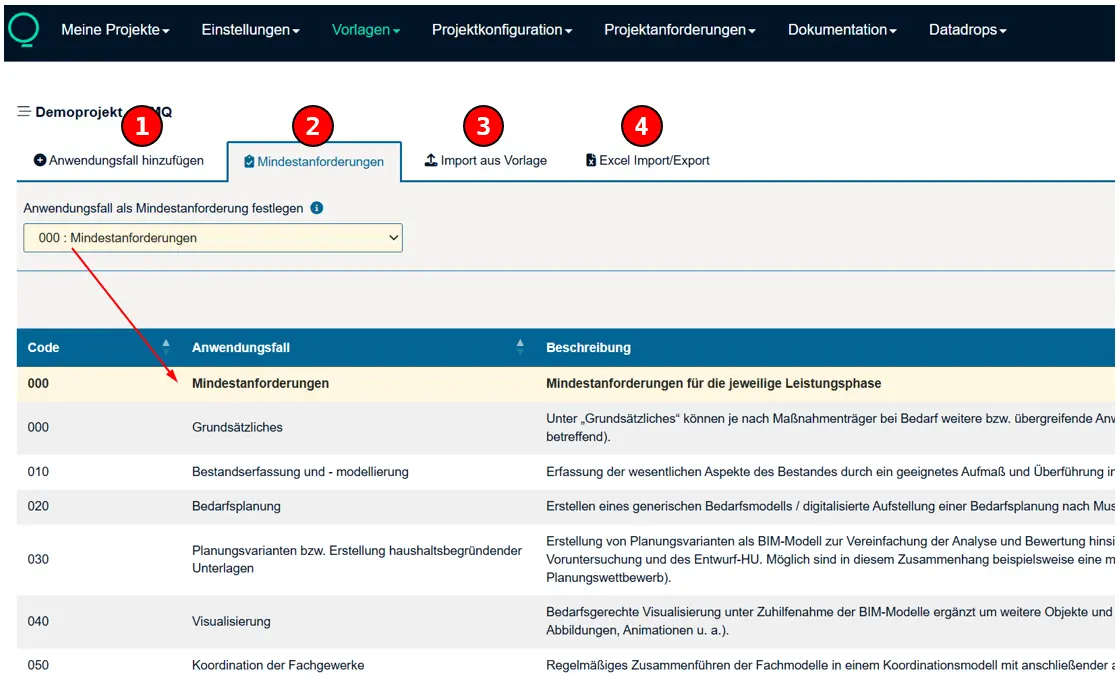
The figure shows typical use cases as defined by BIM-Deutschland. The use case "Minimum Requirements" has also been defined for the representation of minimum requirements. (marked in yellow)
Add Use CaseThis allows the creation of use cases directly via the UI. It is mandatory to specify a code and the name of the use case.Minimum RequirementsThis section is used to define a specific use case that covers minimum requirements. In principle, this use case can be applied to any use case defined in BIMQ. In the example, the standard use case "000-Minimum Requirements" has been selected (highlighted in yellow). The minimum use case can also be deactivated again.Note: This use case defines the minimum information requirements for each phase. Any requirements specified are automatically applied to the other use cases within the relevant phase.
Template ImportThe function Template Import allows access to external content. This includes projects to which you have been invited or projects provided by AEC3. A certain level of access authorisation is therefore required. External content can then be integrated into your own project.Excel Import/Exporthis feature allows you to import data easily via Excel. We recommend that you always export the data to Excel first so that you can use the basic Excel structure (template) required by BIMQ.
Note: The function Template Import and the Excel Import/Export feature are also available for the sections Actors and Phases.