

My Projects - Project Overview
Project Organization
The project organization provides an overview of all projects with access permissions, as well as details on login credentials and the license model in use.
Figure: Project Organization

General overview of the organization, licensing model, login credentials, and user roles within the organization.
List of currently active projects and their maximum number according to the licensing model. A new project can be created by clicking the
plus icon.Metadata for all available projects. This includes:
Projects from your own organization (license-dependent)
Projects from other organizations (license-independent)
Publicly accessible projects (license-independent)
Creating, copying, and deleting projects
New projects are created through the project organization, as described in step 2 above. When creating a new project, you can define all key details, such as the project name, description, status, project structure, etc.
Figure: Project Overview

General project data such as the project
Name, projectDescription,Organizationdetails,Languageused (determines the drop-down lists of available software products; cannot be changed later), projectStatus(Draft, Approved, No Longer in Use),Version, and theProject Structureused.Copythe project.Deletethe project.Used
Project Structure.Switch to an alternative project structure.
Invite Participants
If you want to invite new participants to a project, you must assign them to the project via the Participants tab.
Figure: Inviting new project participants
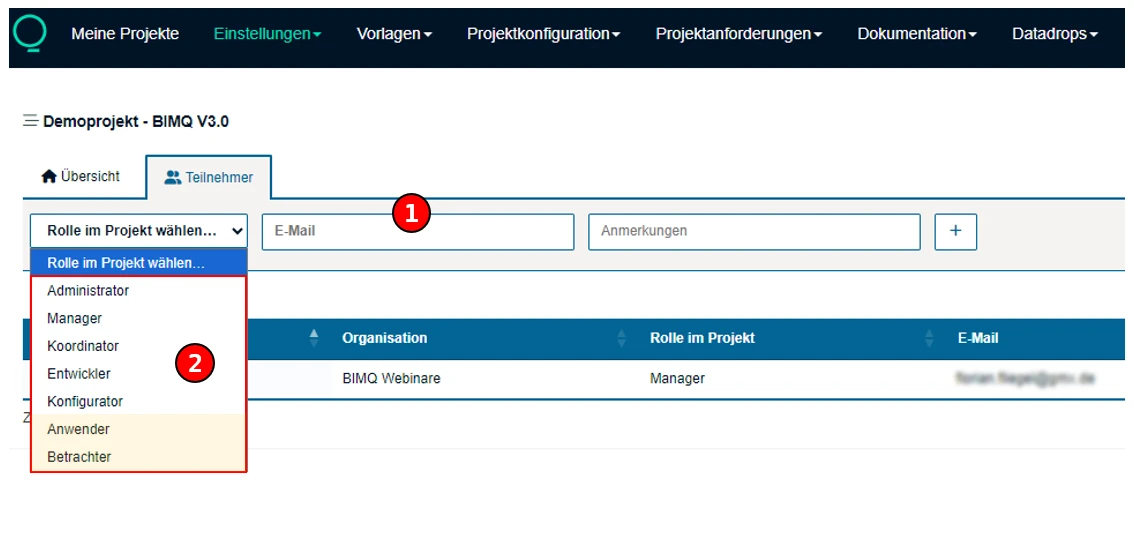
Email address of the participant to be invited to the project.
Selectable permission role to be assigned to the participant. All permission roles are linked to specific user profiles, which are explained in the section Right Management.
Note: The user profiles Administrator, Manager, Coordinator, Developer, and Configurator have write access to the platform. Therefore, these must be created as users in the section My Organization.
The user profiles “User” and “Viewer” have read-only access to the platform. There are no restrictions, and any number of participants can be invited.
Only users with the roles of Administrator or Manager, as well as those with the higher-level organizational role of Organisation Manager, have the permission to invite new participants with write access to a project.
Project Structure
When creating new projects, you can choose between two project structures:
Use Phases and Use Cases
Use Milestones and Use Cases
The project structure you select affects the display in the Templates and Project Configuration sections, as well as the display of data drops.
Phases and Use Cases
The choice of project structure depends on the preferred strategy:
If Use Phases and Use Cases is selected as the project structure, project Phases and Use Cases can be created separately in the Templates section. Use cases are linked to project phases in the section Project Setup / Assign Use Cases. Here, use cases can be freely assigned to any project phase.
Note: This project structure is preferred by most users.
Milestones and Use Cases
If Use Milestones and Use Cases is selected as the project structure, these can be defined in the section Templates / Requirements structure.
Here, Use Cases are created and linked to specific Milestones. The assignment of specific milestones to a use case is always unique and cannot be reused. Milestones describe important handoff points or intermediate results of use cases. They help monitor progress and ensure that all relevant information are available at the right time. A use case is only considered fully completed once all assigned milestones have been successfully implemented.
Practical example:
Depending on how the use case is structured, the associated milestones may have different purposes. For example, use case UC_05 – Cost Calculation could include the following milestones:
M1 - Cost calculation for structural work
M2 - Cost calculation for finishing work
M3 - Cost calculation for the facade
It would also be possible to define milestones per object or by object group.
Special Features
If a project was created using the Use Phases and Use Cases project structure, it is possible to transfer this project to the Use Milestones and Use Case project structure. In this process, all use cases are retained, and all phases are converted into milestones.
Important: This process cannot be reversed.